


Fill and Sign Easy PDF Editor
4.4465.00 Reviews
App Specs
- Version
- 2.9.8
- Updated On
- License
- Free
- Downloads
- 1,000,000+
- Developer
- Amplify·
- Categories
- Business
- Platform
- Android
Screenshots
 Analysis by AppCompare
When a document needs a signature before the end of the day, the hard part is often not the signing itself but finding the file, getting it into a usable state, and making sure the finished copy goes to the right person. That is the practical problem Fill and Sign Easy PDF Editor aims to solve. I see it as a handy business app for occasional paperwork and quick form edits, rather than a replacement for a full desktop document workflow.
Where people can get stuck
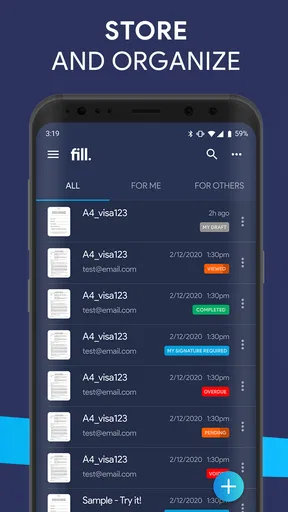
The first snag with any mobile document editor is usually the file handoff. A form might be sitting in an email attachment, a cloud folder, or the phone’s local storage, and it is easy to lose track of which copy is the one that needs attention. I recommend opening the file from its current location first, then checking that the document displayed in the editor is the intended version before adding information. That small pause can prevent a polished signature from ending up on an outdated form.
On a phone, page size and screen space can also make precise placement harder than it looks. A signature that seems aligned while zoomed in may sit too close to a line when viewed at normal size. I would zoom out and review each completed page before sharing, especially if the form has small boxes, dense text, or a signature area near the page edge. This is a simple quality check, not a special feature, and it is worth making part of the routine.
Checks that make setup smoother
Before starting, I would make sure the document is saved somewhere I can find again and that I have a dependable way to share the final copy. The app is free to download, but it includes in-app purchases ranging from $0.99 to $119.99 per item, so I would check the purchase screen carefully before choosing anything paid. For someone who only signs a form now and then, it makes sense to try the basic workflow first and decide whether any paid option is genuinely useful.
This is a business app from Amplify·, and its audience is broader than office teams: students dealing with permission forms, freelancers handling routine paperwork, and anyone who needs to add a few details to a document can all have a reason to use it. It is rated for Everyone, and it has an average rating of 4.4 from around 5,100 ratings, with over a million installs. Those figures suggest a widely used tool, but they do not tell me whether it suits a particular person’s document habits; the best test is whether it handles the files and edits that person actually needs.
Getting Started with Ease
Once I installed Fill and Sign Easy PDF Editor, I immediately appreciated its user-friendly interface. Seriously, no fuss, no frills—just straight to business. As soon as you open the app, you’re greeted with a clean layout that makes navigation a breeze. I didn’t even need a tutorial to dive right in, which is always a plus in my book.
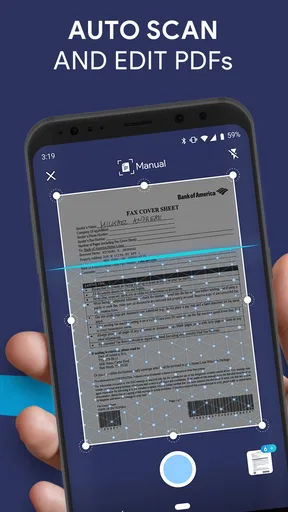
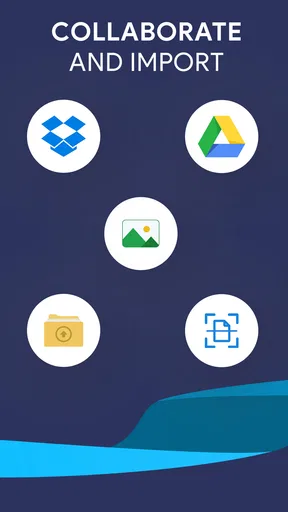
The app lets you import documents from various sources. Whether it's from your email, cloud storage, or directly from your phone, it’s got you covered. It also supports a wide range of file formats, so you won’t find yourself struggling to open a pesky document.
Worth Reading Before You Choose

EA SPORTS FC Mobile 26 Is a Bigger Football Game, but It Takes Time

Flipboard Shows What News Apps Must Do Beyond the Feed

Switching to Android Auto Means Rethinking Your Driving Routine

Google Calendar Makes a Crowded Week Easier to Manage

Ludo King Makes the Most of the Minutes Between Plans

Baby Panda World Brings Quick Play to Modern Phones, but Its Game Library Feels Busy
Editing Made Simple
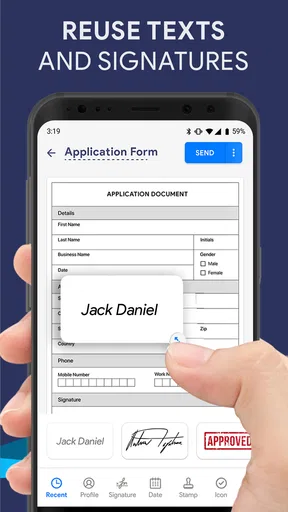
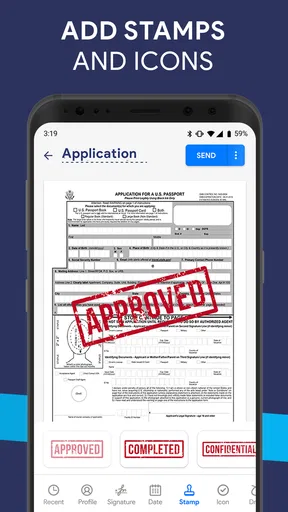
Now, let’s talk about the editing features. This app doesn’t just let you fill out forms; it’s a full-fledged editor. You can add text, checkboxes, and even your signature. The text editing is intuitive, allowing you to change fonts, sizes, and colors. It’s like having a mini office suite right in your pocket.
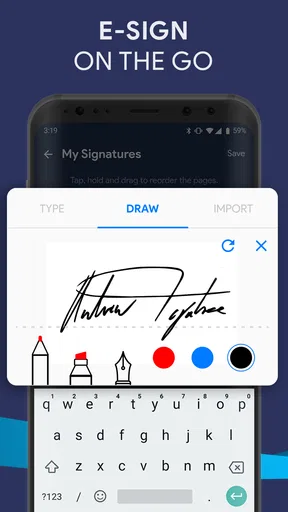
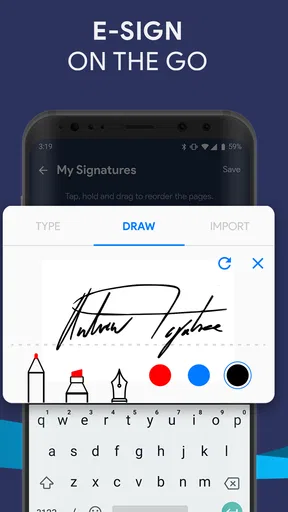
Signing documents is a breeze too. You can either draw your signature with your finger or stylus, or upload an image of your signature. I found this particularly handy for those official documents that need a personal touch.
Making a reliable signing routine
For a realistic example, imagine a client sends a short form while I am away from my desk. I can bring the document into the app, add the required text, place a signature, then review the page before returning the finished copy. I would keep the original untouched until I have checked that every field is complete and the signature is legible. That is a useful mobile shortcut for simple paperwork, but I would still use a computer when a document needs extensive rewriting, careful comparison, or a highly controlled layout.
A small but useful habit is to prepare reusable information outside the document before starting: confirm the spelling of names, dates, and addresses, then enter them consistently. On a touchscreen, correcting a typo after text has been placed can be fiddlier than drafting the details first. For repeated forms, I would also check each one individually instead of assuming the last layout will fit the next document; lines and boxes can be positioned differently even when the forms look similar.
Choosing the right tool for the job
Compared with opening a PDF in a general file viewer and trying to annotate it, a dedicated fill-and-sign app is more focused on the practical task of adding form details and a signature. Compared with a desktop PDF editor, it is easier to reach for when I only need a quick mobile edit, but a larger screen is better for lengthy forms, dense pages, and precise layout work. If a team needs formal review stages, controlled approvals, or a dependable record of who changed what, I would choose a specialist business signing service instead of assuming a simple phone editor covers that process.
There is also a useful distinction between signing and approving. Adding a handwritten mark can complete a routine form, but it should not be treated as proof that every recipient will accept the document for every legal or organizational purpose. If the sender gives instructions about a particular signing method, I would follow those instructions and ask them before substituting a drawn or image-based signature. That avoids the frustrating situation of returning a completed file only to be asked to sign it again in another way.
Editing Made Simple
Now, let’s talk about the editing features. This app doesn’t just let you fill out forms; it’s a full-fledged editor. You can add text, checkboxes, and even your signature. The text editing is intuitive, allowing you to change fonts, sizes, and colors. It’s like having a mini office suite right in your pocket.
Signing documents is a breeze too. You can either draw your signature with your finger or stylus, or upload an image of your signature. I found this particularly handy for those official documents that need a personal touch.
Recovering when a workflow goes wrong
If a document does not appear where I expect, I start by checking the place I opened it from and whether I am looking at the original or a separate copy. I would avoid making multiple edits to several similarly named files, because that makes it harder to know which version is ready to send. A clear filename and a quick final review are more reliable than relying on memory when several forms are in progress.
If text or a signature looks misplaced, I would correct it before sharing rather than hoping it will look better on the recipient’s device. Reopen or revisit the relevant page, inspect the placement at both a close view and a full-page view, and confirm that the final file is the one attached to the message. When a share action does not complete as expected, I would return to the document and try the normal sharing route again, while keeping a copy available in its original location. These are ordinary recovery steps, but they reduce the risk of sending a blank, incomplete, or wrong version.
When the app may not be the cause
Some problems begin before a file reaches the editor. A sender may have supplied a scan rather than a form with clean, selectable fields, or the document itself may be difficult to read on a small screen. In that situation, changing font size or adding text cannot fix a poor source document. I would ask for a clearer copy or use a larger screen if legibility and placement matter.
Likewise, a recipient may have rules about how a form must be completed, or a cloud account may require its own sign-in before a file can be accessed. Those are separate from the act of editing. If access fails, I would confirm that I can open the file from its original service and that I am using the right account before troubleshooting the editor. The current version is 2.9.5 and requires Android 8.0 or later, so compatibility is another sensible early check for Android users.
Sharing, cloud use, and privacy in practice
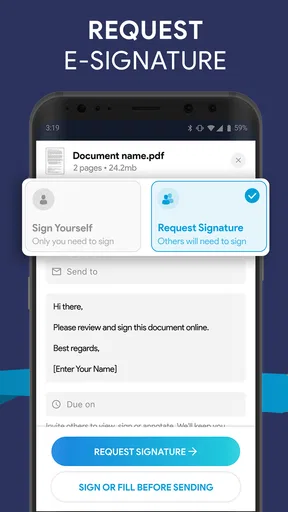
Once you’ve edited your document to perfection, sharing it is as simple as pie. You can send it directly via email or share it through a variety of other apps. What’s more, the app allows for collaborative editing. This means you can invite others to view or edit the document, making it perfect for team projects or group assignments.
The app also integrates seamlessly with cloud services. I synced it with my Google Drive, and it was smooth sailing from there. No more manually uploading and downloading documents—everything is just a tap away.
For a document that contains personal details, I would be deliberate about the destination before sharing. Check the recipient, the selected file, and whether the document is going to a personal or work account. Cloud convenience can make a file easier to reach, but it also makes careful account selection important when a phone is shared or several accounts are signed in. I would not treat a general claim of protection as a reason to skip these basic checks.
The app is free, with optional in-app purchases priced from $0.99 to $119.99 per item. That range is broad, so I would not buy anything simply because it appears during setup; first decide whether the app’s everyday editing and signing workflow meets your needs. If your work involves confidential records or strict company rules, check those requirements before storing or sending documents through any mobile tool.
Security and Privacy
In today’s world, security is a top concern for many of us. Rest easy knowing that Fill and Sign Easy PDF Editor takes your privacy seriously. The app offers encryption for your documents, ensuring that your sensitive information remains confidential. You can also set passwords for your files, adding an extra layer of protection.
Who will get the most from it
I would recommend this app to someone who regularly receives straightforward forms and wants to complete them without switching to a computer. A freelancer signing routine paperwork, a student filling out a school form, or a small-business owner adding details to a document are all sensible fits. It is especially useful when the task is specific and short: enter information, mark a checkbox, sign, review, and send.
I would skip it as my main tool if I needed to redesign documents, manage a complicated approval chain, or coordinate many people around controlled versions. Those jobs call for a fuller desktop editor or a dedicated signing platform whose workflow is built around those requirements. Likewise, someone who rarely handles documents may be better served by the basic tools already available on their device rather than installing another app.
Why It’s a Must-Have
All in all, Fill and Sign Easy PDF Editor is a game-changer for anyone dealing with a lot of paperwork. It’s efficient, secure, and incredibly user-friendly. Whether you’re a student, a business professional, or just someone who likes to keep their documents organized, this app is a must-have in your digital toolkit.
So, if you’re looking to streamline your document management process, give Fill and Sign Easy PDF Editor a try. It might just become your new favorite app.
My practical verdict
My overall impression is that this is most convincing as a quick, approachable way to handle everyday form-filling on a phone. Its focused editing tools, signature options, and sharing workflow suit short tasks better than elaborate document production. The app was released on August 20, 2019, and has 451 written reviews alongside its broader rating count; I would treat that as useful context, not a substitute for checking whether its editing style suits the documents I handle.
If you need a simple mobile route from an incoming form to a signed copy, I would give it a try, starting with a non-sensitive document so you can learn the workflow and inspect the result. If the first task feels awkward, or your documents demand formal approvals and exact layout control, choose a tool designed for that heavier process. For occasional paperwork, though, the convenience is real: it can save the trip to a computer without pretending that every document job belongs on a phone.
Pros
- User-friendly interface for quick navigation.
- Supports multiple document formats seamlessly.
- Offline access to signed documents.
- Strong security features for data protection.
- Integration with cloud services for easy storage.
Cons
- Limited free version with basic features.
- Occasional lag with larger files.
- No batch processing for multiple documents.
- Advanced features require subscription.
- Limited customization options for signatures.
FAQs for Fill and Sign Easy PDF Editor
What features does Fill and Sign Easy PDF Editor offer?
Fill and Sign Easy PDF Editor provides a comprehensive suite of tools for editing PDFs, including the ability to fill out forms, add signatures, annotate, and manage documents. It supports importing documents from various sources, offers secure encryption for sensitive files, and features a user-friendly interface for seamless navigation.
Is Fill and Sign Easy PDF Editor free to use?
While Fill and Sign Easy PDF Editor offers a free version with basic features, there is also a premium version available. The premium version includes advanced features such as unlimited document storage, enhanced editing tools, and priority customer support. Users can choose the version that best fits their needs.
Can I use Fill and Sign Easy PDF Editor offline?
Yes, Fill and Sign Easy PDF Editor allows users to edit and manage PDFs offline. This feature is particularly useful for those who need to work on documents without an internet connection. However, some features, such as cloud syncing and online storage, require an internet connection.
How secure is Fill and Sign Easy PDF Editor for sensitive documents?
Fill and Sign Easy PDF Editor employs advanced encryption methods to ensure the security of your documents. Sensitive files can be protected with passwords, and the app regularly updates its security protocols to safeguard against unauthorized access and data breaches. Users can confidently manage confidential information.
Is Fill and Sign Easy PDF Editor compatible with all devices?
Fill and Sign Easy PDF Editor is compatible with both Android and iOS devices, ensuring a seamless experience across smartphones and tablets. The app is optimized for various screen sizes and supports integration with other apps, making it versatile for different workflows and productivity needs.


